
Why these photos print badly
Every app between the camera and you makes the photo smaller. Facebook shrinks and recompresses everything uploaded to it. Picture messages between different kinds of phones often travel as MMS, which squeezes a photo to a few hundred kilobytes. A screenshot keeps only what fitted on the screen, with the rest of the phone around it.
None of that shows on a phone, because a phone shows the photo a few inches across. On paper, the missing detail turns into soft edges, blocky skin and halos around faces.
Get the best copy you can
- 1
Ask for the original
The person who took the photo has it at full size in their camera roll. Ask them to send it as a file, by email, or through a shared album like Google Photos or iCloud. That copy is usually several times bigger than anything you can save from Facebook.
- 2
Download it from Facebook, don't screenshot it
On a computer, open the photo, select the three dots and choose Download. In the app, open the photo, tap the three dots and choose Save photo. You get the largest copy Facebook kept, which is bigger and cleaner than a screenshot of the same photo.
- 3
Save a texted photo properly
Open the photo in the conversation and save it from there (Share, then Save Image on an iPhone; tap and hold, then Save, on Android) rather than screenshotting it. If you're on an iPhone, check that Low Quality Image Mode is off under Settings, Messages, or photos you receive from now on arrive smaller.
- 4
If a screenshot is all you have, crop it
Crop away everything that is not the photo: the status bar, the buttons, the caption. Then check how many pixels are left, because that, not the size of the screenshot, decides how big it prints.
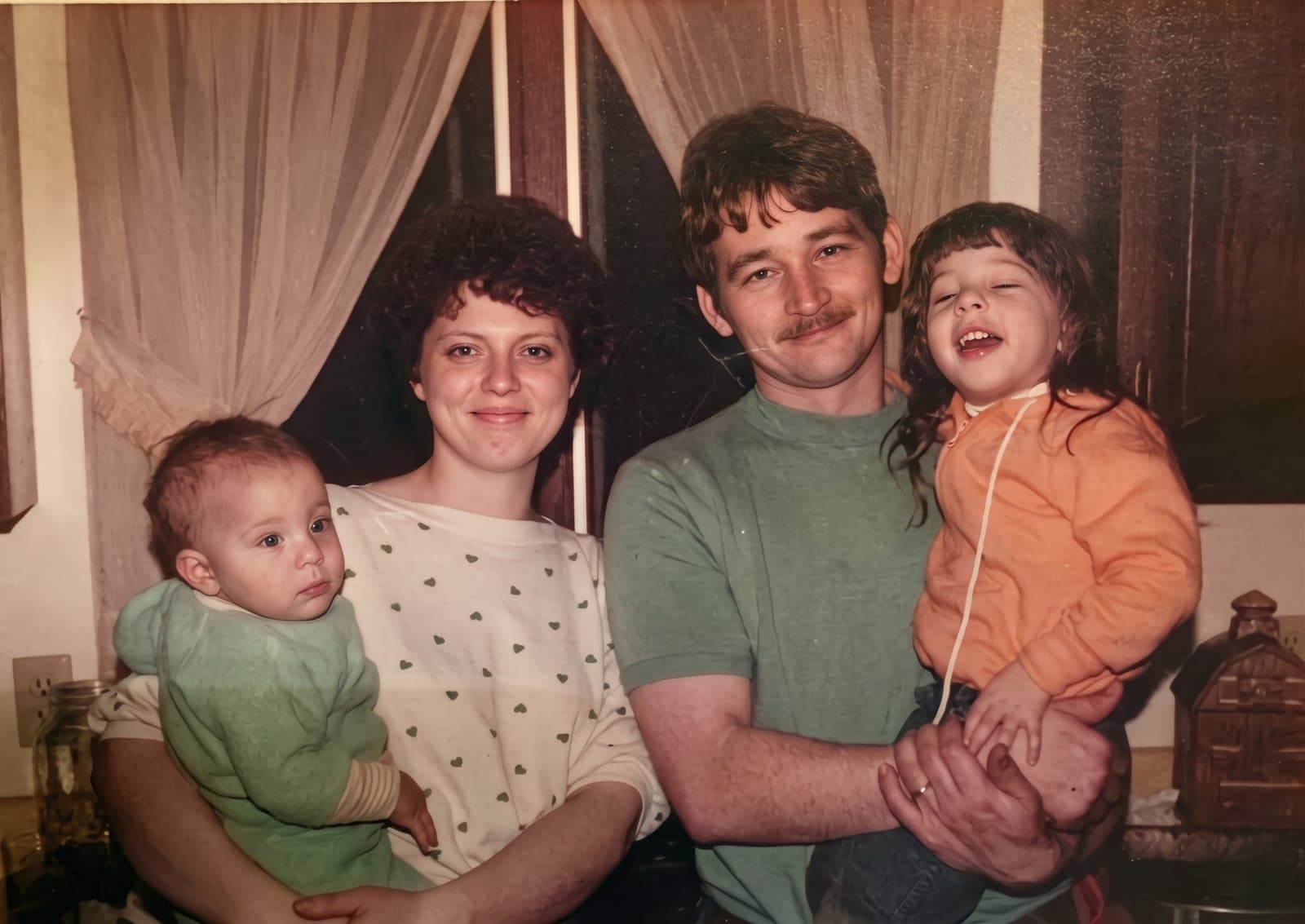
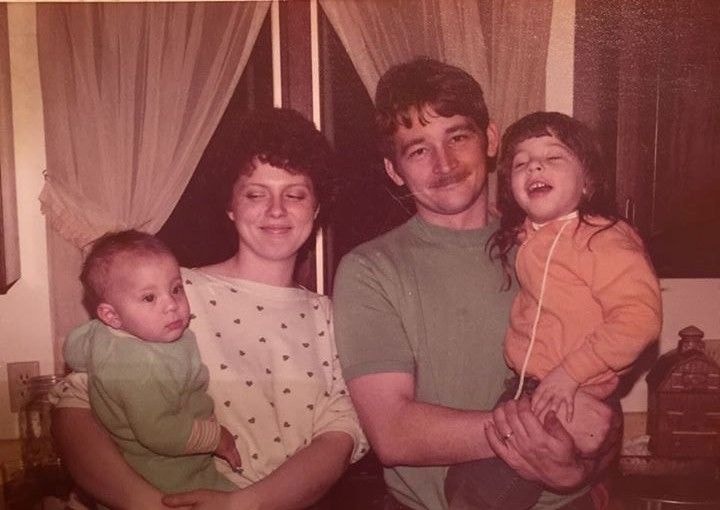 BeforeAfter
How big will it print?
Approximate pixel sizes, and the largest print each makes. "Sharp" is 300 pixels per inch, for prints you hold; "fine on a wall" is 150.
| Where it came from | Typical pixels | Sharp (inches) | Fine on a wall (inches) |
|---|---|---|---|
| Facebook download | Typical pixels: 1,536 × 2,048 | Sharp (inches): 5.1 × 6.8 | Fine on a wall (inches): 10.2 × 13.6 |
| Instagram download | Typical pixels: 1,080 × 1,350 | Sharp (inches): 3.6 × 4.5 | Fine on a wall (inches): 7.2 × 9 |
| Screenshot, cropped to the photo | Typical pixels: 1,080 × 1,440 | Sharp (inches): 3.6 × 4.8 | Fine on a wall (inches): 7.2 × 9.6 |
| MMS picture message | Typical pixels: 480 × 640 | Sharp (inches): 1.6 × 2.1 | Fine on a wall (inches): 3.2 × 4.2 |
These vary by phone, app and settings, so check your own file. On a phone, open it and swipe up to see its size.
If the size you want is bigger than the table allows, either print smaller or upscale the photo to the print size first. Upscaling rebuilds the detail compression threw away rather than stretching what is left. It does least for tiny MMS photos, where most of the detail is already gone.
Printing it
- Pick a print size the same shape as the photo, or the lab will crop it. Most phone photos are 3:4, which matches 18×24 but not 4×6 or 8×10. The size pages extend the background to fit a different shape instead.
- Upload the file to the lab or kiosk, not a screenshot of it, and turn off any "auto enhance" or "fill print" option that crops.
- For a gift or a memorial, print a small test first. A 4×6 costs very little and shows what the big one will look like.