
Before you start
- Scan the print at 600 DPI, or photograph it flat near a window with the flash off. A better scan saves more time than any tool.
- Open it and duplicate the background layer (Ctrl+J, or Cmd+J on a Mac). Work on copies and new layers so the original is always underneath.
- Crop and straighten with the Crop tool's Straighten option before repairing anything.
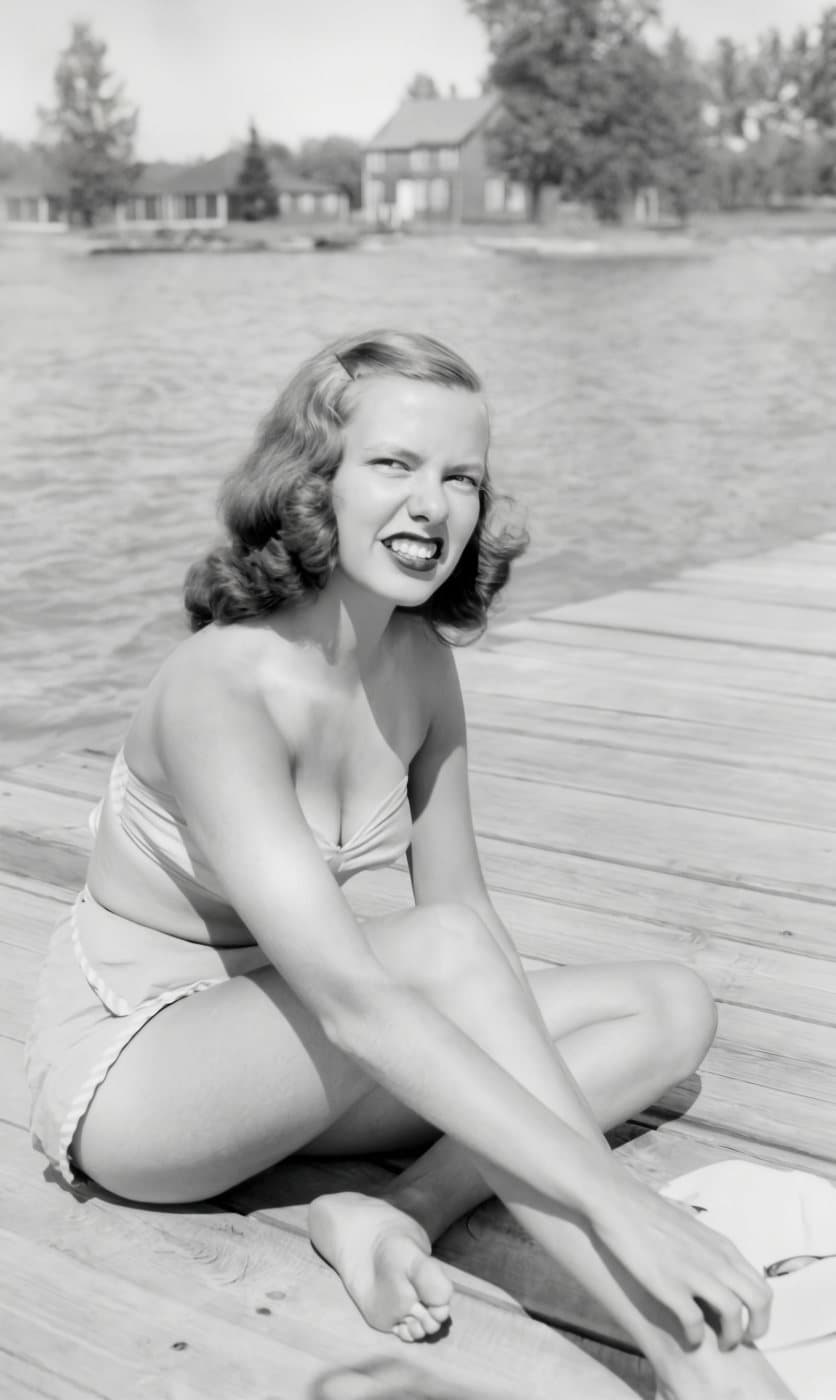
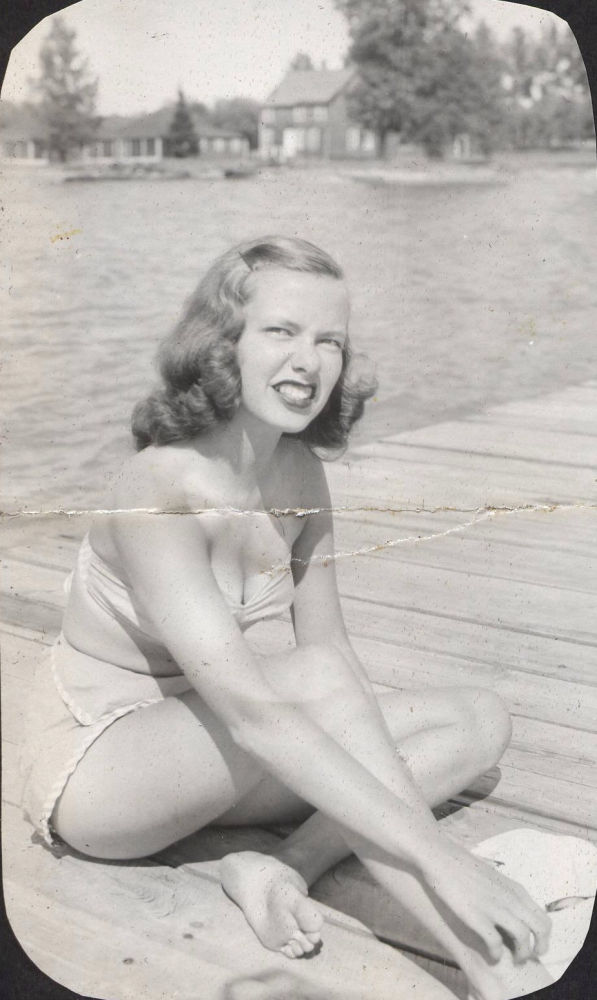 BeforeAfter
Step 1: run the Photo Restoration neural filter
Go to Filter > Neural Filters and turn on Photo Restoration. It downloads the first time you use it and is still labelled beta, but it ships in the regular version of Photoshop.
- Photo Enhancement sharpens and brings back contrast. Start around the middle.
- Enhance Face sharpens faces. Push it gently and zoom in: too much makes faces look waxy.
- Scratch Reduction removes scratches and creases. Keep it low; high values can smear and distort faces.
- Under Adjustments, Noise Reduction, Halftone Artifacts Reduction (for newspaper photos) and JPEG Artifacts Reduction help with grainy or saved-from-the-web copies.
- Set Output to New Layer, so you can mask the result back off any face it gets wrong.
The filter does most of the work on light damage. Tears, missing corners and deep creases still need the next step.
Step 2: repair what is left by hand
| Damage | Tool | How |
|---|---|---|
| Dust and specks | Tool: Spot Healing Brush (J) | How: Content-Aware type, brush a little bigger than the speck, click once. |
| Cracks and creases | Tool: Remove tool, or Spot Healing | How: Paint along the line in one stroke. Work in short sections across faces. |
| Tears through detail | Tool: Clone Stamp (S) | How: On an empty layer with Sample: Current & Below, Alt/Option-click clean detail nearby, then paint over the tear. |
| Missing corners or background | Tool: Content-Aware Fill or Generative Fill | How: Select the missing area and fill it. Fine for walls and sky; never for faces, where it invents someone else. |
| Fine dust all over | Tool: Filter > Noise > Dust & Scratches | How: On a copy layer with a black mask, then paint the effect in only where needed. |
Zoom to 100% or more while repairing, and check at full screen every so often. Faces, eyes and hairlines are where a repair shows.
Step 3: fix fading and color
- Add a Curves or Levels adjustment layer and pull the black and white points in to the edges of the histogram. This restores most of the contrast a faded print has lost.
- For a color cast, try Image > Auto Color, or Filter > Camera Raw Filter and the white balance eyedropper on something that should be neutral grey.
- For a yellowed black-and-white print, add a Black & White adjustment layer: it removes the stain color in one step.
- To add color to a black-and-white photo, see how to colorize a photo.
Step 4: sharpen and save
Sharpen last and lightly with Filter > Sharpen > Smart Sharpen, judged at 100%. Save a layered PSD so you can come back to it, then export a JPEG or TIFF at the size you will print. For printing bigger than the scan allows, see why photos print blurry.
Photoshop, a free editor, or AI?
| Photoshop | Photopea or GIMP | AI restoration | |
|---|---|---|---|
| Cost | Photoshop: About $20 a month | Photopea or GIMP: Free | AI restoration: A few dollars a photo |
| Time for a damaged print | Photoshop: One to a few hours | Photopea or GIMP: Longer: no neural filter | AI restoration: Seconds |
| Skill needed | Photoshop: Moderate | Photopea or GIMP: Moderate | AI restoration: None |
| Control over each repair | Photoshop: Full | Photopea or GIMP: Full | AI restoration: Little |
Photopea runs in the browser and has the Spot Healing Brush, Clone Stamp and Curves, so Steps 2 to 4 work the same way there.
A good middle way: let AI do the heavy repair, then open the result in Photoshop for anything you want to adjust by hand.
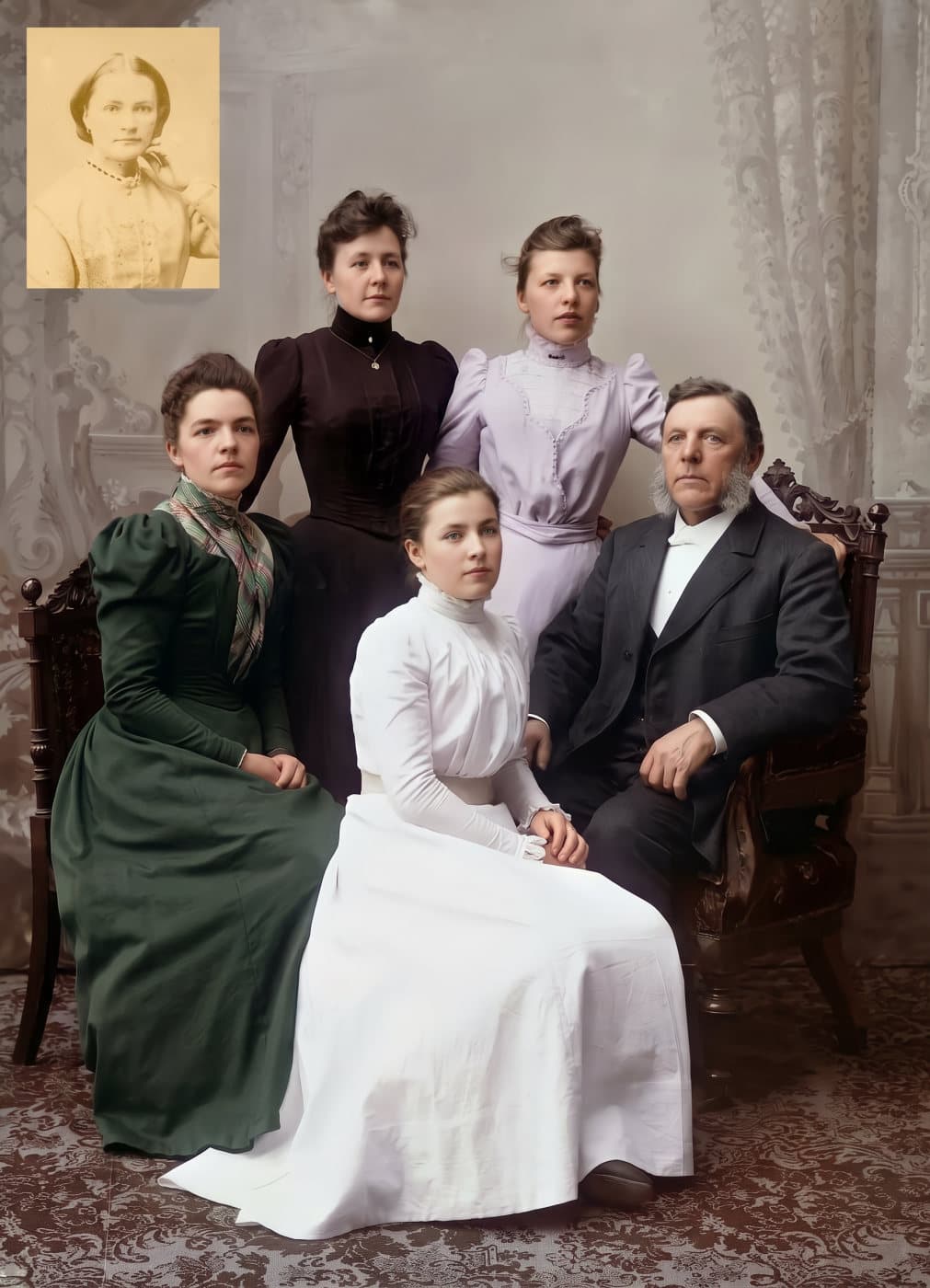
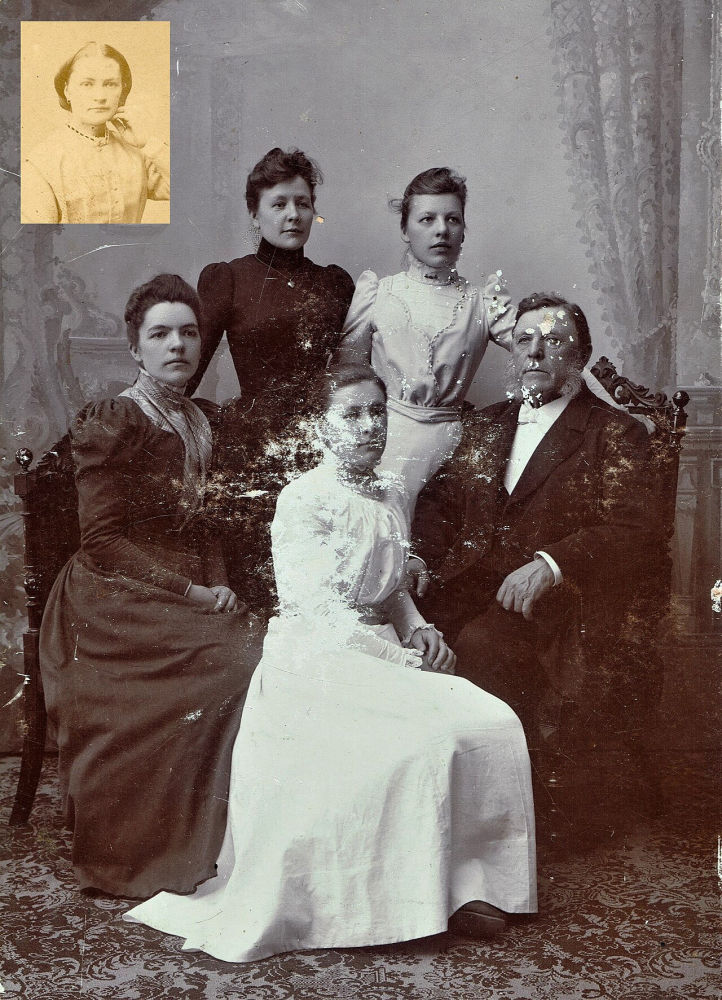 BeforeAfter