
What triggers the warning
Print services compare your photo’s pixels with the size you ordered. When there are too few pixels for each inch of paper, they flag it. Shutterfly says it shows low-resolution warnings "when photos fall below recommended resolutions" and recommends at least 3 megapixels for standard prints. Mpix says its software notifies you when an image does not meet its minimum.
Mpix publishes its numbers, and they show where the line is:
| Minimum | Optimal | |
|---|---|---|
| 4×6 | Minimum: 400 × 600 | Optimal: 1,000 × 1,500 |
| 8×10 | Minimum: 800 × 1,000 | Optimal: 2,000 × 2,500 |
| 24×36 | Minimum: 2,400 × 3,600 | Optimal: 6,000 × 9,000 |
The minimum works out to 100 pixels per inch and the optimal to 250. Shutterfly’s recommended sizes sit in the same range, such as 2,400 × 3,600 for a 24×36 canvas.
Two things follow. A warning means the photo is well below what a sharp print wants. And no warning doesn’t mean sharp: a photo at 120 PPI passes the check but still looks soft in your hand. For prints you hold, aim for close to 300.
Should you order anyway?
- For a print on a wall seen from across the room, a little under the line can be acceptable. For a print in a hand or a frame on a desk, the softness will show.
- For anything that matters, a memorial, a gift or a large canvas, fix the file first. A reprint costs more than the fix.
- Shutterfly notes that resizing until the warning disappears applies to photo books, where a photo can sit smaller on the page. For a single print, shrinking the photo on the page doesn’t change the paper size.
How to clear the warning
- 1
Upload the original, not a copy
This is the cause most of the time. Facebook, Instagram, Messenger, WhatsApp and screenshots all send smaller copies. Shutterfly’s own advice is to use "the original full-size image file" instead of one from social media. Ask the person who took it to send the file itself, or download from a shared album instead of a chat.
- 2
Choose a smaller size
Divide the photo’s pixels by 300 for the size it prints sharp, or by 150 for a wall print. The DPI checker does this for every size at once, in your browser.
- 3
Upscale it to the print size
If there is no bigger original, an AI upscaler rebuilds the missing detail and gives the lab a file with enough pixels to clear the check. Shutterfly warns that increasing resolution with software can degrade quality, and with simple resizing that’s true: it blurs. AI upscaling adds detail instead, but it predicts that detail, so check faces at full size before you upload. On Resly you type the print size and get a file made for it. Upscale a photo.
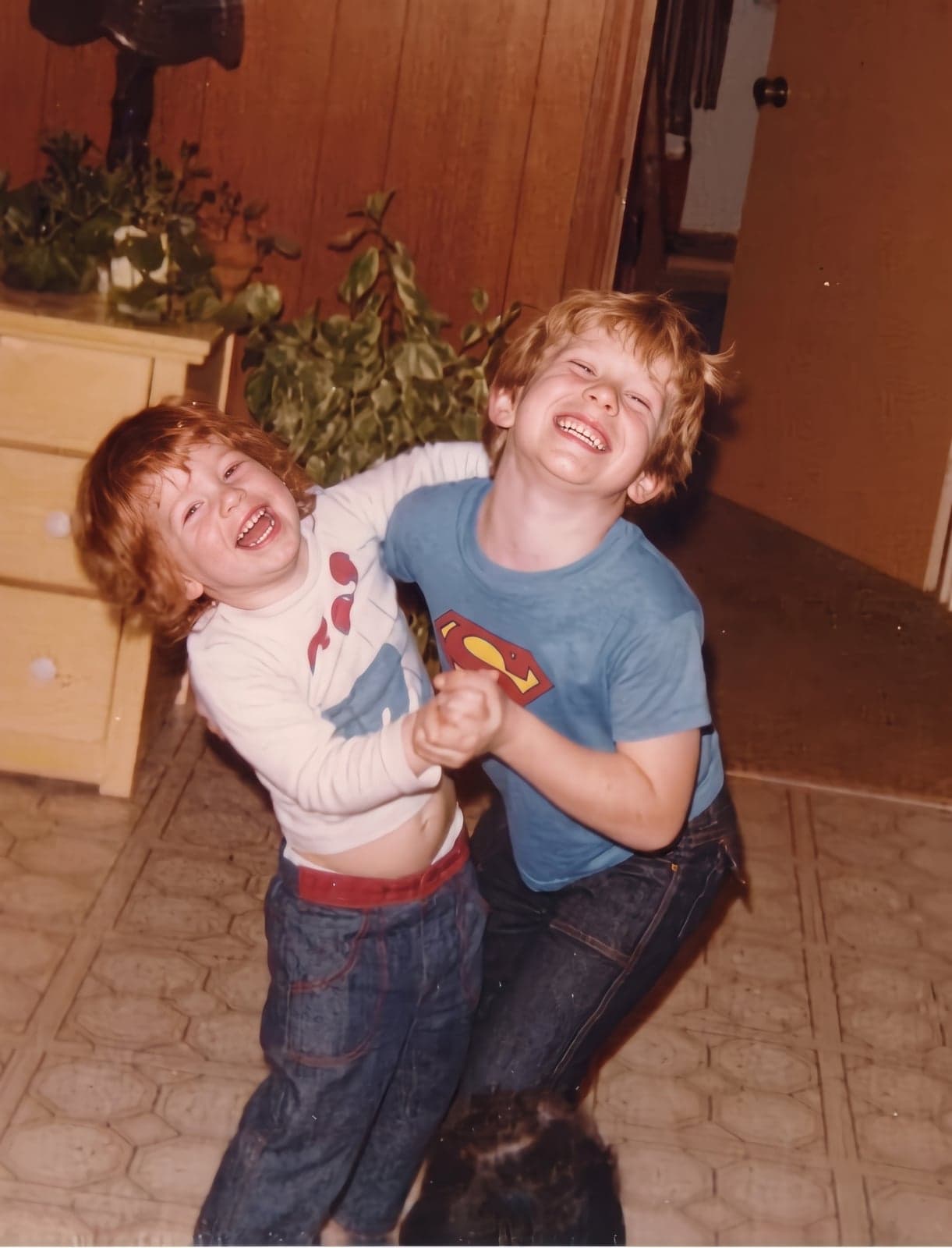
 BeforeAfter
What doesn’t clear it properly
- Changing the DPI number to 300. Most labs read the pixels, not the label, so the warning stays. Where it does disappear, the print is no sharper.
- Enlarging it in Paint or Preview. The pixel count goes up and the warning may go away, but the print is the same blur, bigger.
- Cropping in the lab’s editor. Cropping throws pixels away, which makes the warning worse.