
Start with the best original
Cropping throws away most of the photo, so every pixel of the original counts. Before you crop, find the largest copy that exists: the camera roll of whoever took it, not the version on Facebook or in a group chat. The guide to photos from Facebook and texts covers how to get it.
If there are several group photos, pick the one where the person is largest in the frame and in focus, even if the expression is not the best. A sharp face that fills more of the photo makes a far better portrait than a perfect smile three rows back.
How to crop someone out of a photo as a portrait
- 1
Frame head and shoulders
Leave space above the head roughly equal to the forehead's height, and come down to the middle of the chest. Tight crops that clip the top of the head look like cropped group photos; a little room looks like a portrait.
- 2
Leave more than you think you need
It is easy to trim later and impossible to put back. Extra room also helps if the print's shape differs from your crop.
- 3
Check the crop size
Once cropped, check its size in pixels (on a phone, open it and swipe up). Divide the long side by 150 for the largest size that looks good on a wall, or by 300 for one held in the hand. The free crop tool does the crop and this check together, locked to the print's shape, without uploading anything.
| Crop size (pixels) | Sharp (inches) | Fine on a wall (inches) |
|---|---|---|
| 400 × 500 | Sharp (inches): 1.3 × 1.6 | Fine on a wall (inches): 2.6 × 3.3 |
| 800 × 1,000 | Sharp (inches): 2.6 × 3.3 | Fine on a wall (inches): 5.3 × 6.6 |
| 1,200 × 1,500 | Sharp (inches): 4 × 5 | Fine on a wall (inches): 8 × 10 |
| 1,600 × 2,000 | Sharp (inches): 5.3 × 6.6 | Fine on a wall (inches): 10.6 × 13.3 |
For a bigger print than the crop allows on its own, upscale it.
Enlarging the crop
Upload the crop and choose the print size, such as 8×10 or 16×20. The upscaler rebuilds the fine detail a bigger print needs. If the crop is a different shape from the print, the background is extended to fit, so the top of the head isn't cut off to make it fit.
Then check the face at full size. The smaller the crop, the more of the face the AI has to infer, and the more likely small features drift from the real person. If something looks off, try a slightly bigger crop, a different photo, or a smaller print. A good 8×10 is better than a 16×20 that doesn't quite look like them.
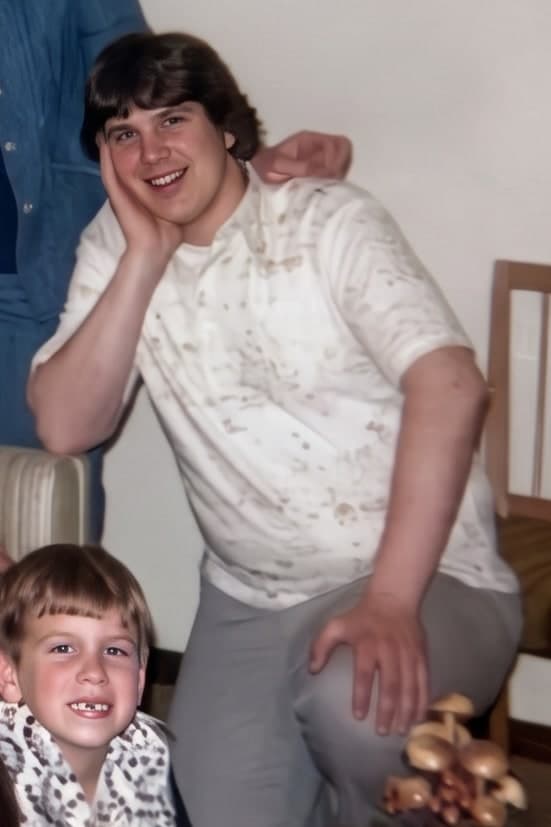
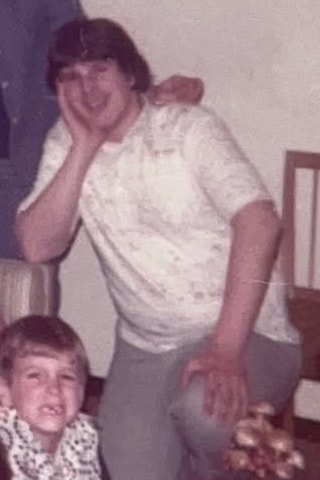 BeforeAfter
The people beside them
A shoulder, an arm or half a face at the edge of the crop stays in the picture: upscaling sharpens what is there, it doesn't take things out. You have three options:
- Crop tighter, if that still leaves enough room around the head.
- Remove it with an object-removal tool before upscaling, such as Magic Eraser in Google Photos, Clean Up in Apple Photos, or Photoshop's Remove tool. These work best on small things against a plain background.
- For a memorial portrait, ask a retoucher. Many print shops and funeral homes know one, and a person standing close against them is a job for a human.